¶ Maven Documents 4.4.0 Release Notes
¶ Release Summary
In this release, you will find new features alongside some important improvements. Both these categories were developed to make Maven Documents more versatile and powerful at the same time.
We are talking about the ability to generate documents with a Screen Flow, changing some Document Solution settings manually to make the document generation process faster, generation of a big amount of data without hitting limits and timeouts. All of these you will find in the new release.
For more detailed information read the Release Notes and corresponding Documentation pages.
You can use the following link to install or upgrade the application.
¶ New Features
¶ Generate Documents with a Screen Flow
With this release, you can build a Screen Flow that ends in document generation. All the necessary items from Maven Documents can be added to the Flow as components.
¶ Skip the Document Preview on Salesforce
With this feature, you will be able to disable the immediate preview of the document right after it is generated. It will save you some time and the generated file could be found in the Notes and Attachments section of the record page.
¶ Document Solution Advanced Settings Component
On the Document Solution layout, you will find one additional tab called "Advanced Settings". The content of the tab allows users to make some advanced tweaks to the processes on Maven Documents.
And one of the options from the tab is called Data Formatter. This new option will help you to reduce the document generation time when the template includes a lot of data.
¶ Upgrading Notes
-
The Advanced Settings tab will be shown on the Document Solution page in the newly installed application. In order to add it to the page of the upgraded app, follow these steps:
-
Go to the Document Solution
-
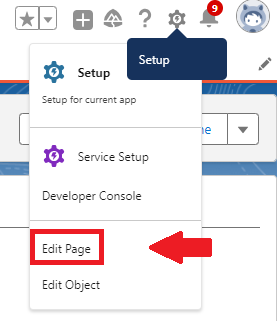
Click the Gear icon in the top right corner and select the Edit Page option
-
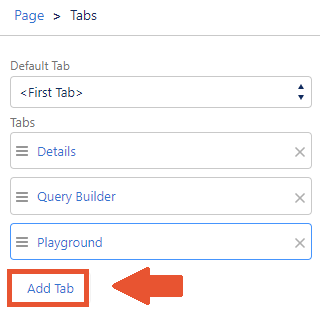
In the opened Lightning App Builder, click on the panel with Details, Query Builder and Playground tabs and then click Add Tab on the right section
-
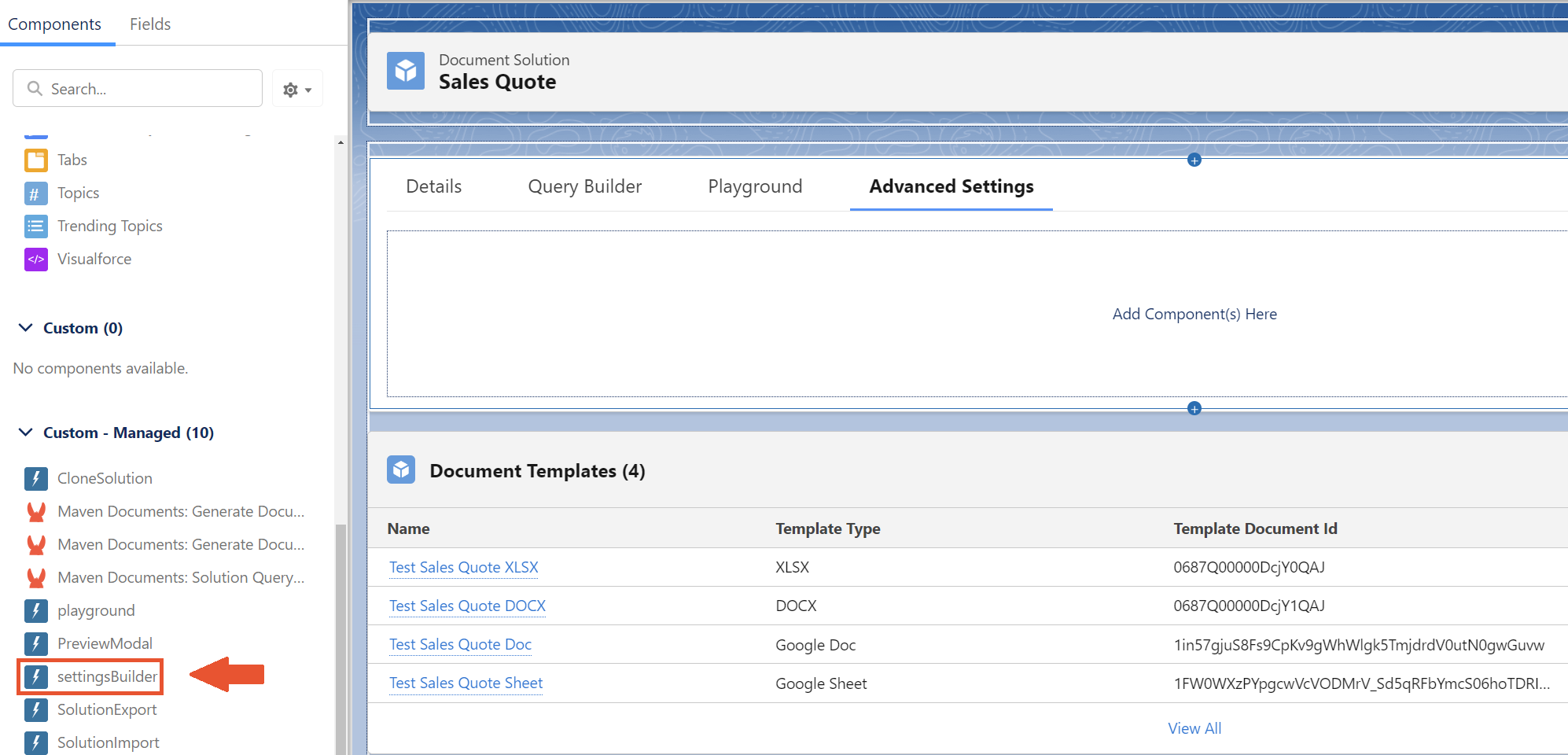
Click on the added tab's name and select the Custom option in the Tab Label field. Label it as Advanced Settings and click Done

-
Click on the created Advanced Settings tab and drag the settingsBuilder component to the tab
-
Save and activate the page as Org Default for both Desktop and Phone
-
-
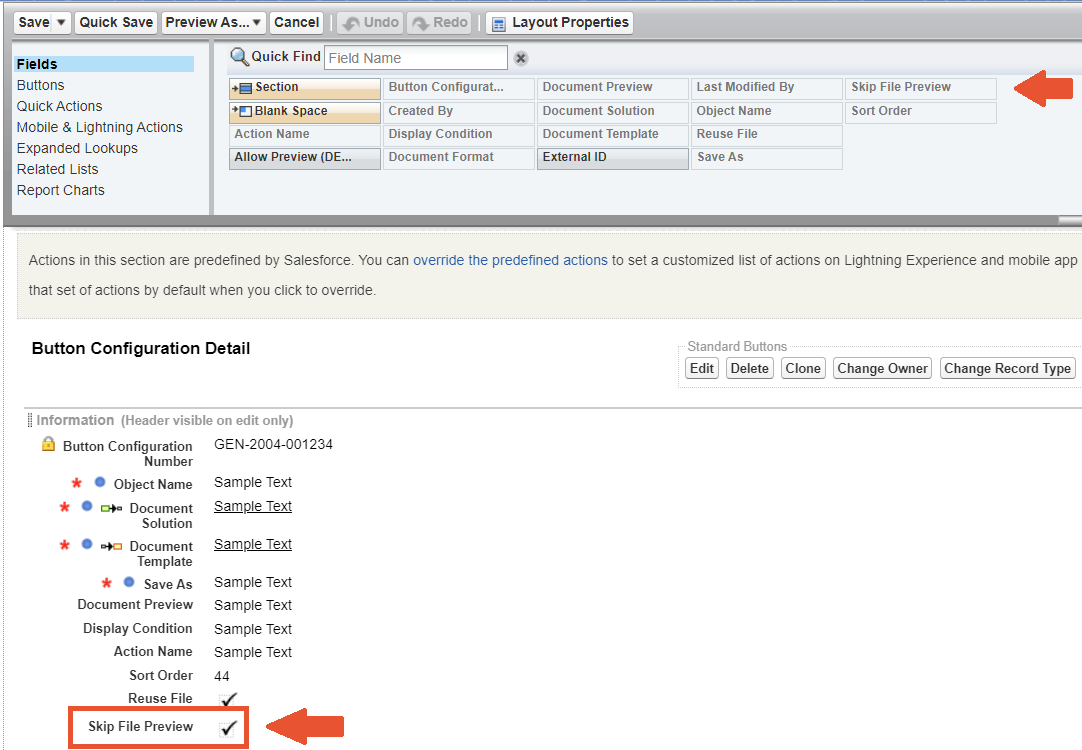
After upgrading Maven Documents from an older version, the Skip File Preview checkbox should be added manually to the Button Configuration Page Layout.
-
Go to the Setup Settings
-
In the Object Manager search and select the Button Configuration Object
-
Edit the object's Page Layout by dragging the Skip File Preview checkbox to the Information section
-
Save the Layout
-
¶ Improvements
- The Repeater element in XLSX files is processed faster
- Microsoft Excel templates with large sets of data are processed faster
- Salesforce performance is improved due to the changes in the backend
- Salesforce Heap size limit is avoided