¶ Elements Reference for PPTX files
This is the reference page for all the Elements you can use in PPTX templates. Here we provide basic information and the full list of available parameters.
Basic information contains the description of the element and covers the following qualities:
selfClosing. Represents whether an element is closed immediately, as opposed to standard HTML tags, which have both an opening and a closing tag.displayType. Represents whether an element is displayed in the inline or block type.containers. Shows where an element can be present inside the document: header, footer, and/or body.
The list of parameters differs from element to element. However, there are basic parameters common to every element:
| Parameter | Type | Description | Required | Default Value | Expression |
|---|---|---|---|---|---|
| name | string | Name of the element. | true | - | false |
| hidden | boolean | Determines whether the element is visible or hidden. | false | false | true |
The Expression column indicates whether an Expression can be used as that parameter's value.
¶ Repeater (mdoc:repeater)
The iteration component that outputs the content of a collection according to the structure that you specify. The whole body of the Repeater element is shown for every record in the collection. This element can nest other elements, such as a Text, Link, or another Repeater, inside.
- selfClosing: false
- displayType: block
- containers: body
¶ Parameters
| Parameter | Type | Description | Required | Default Value | Expression |
|---|---|---|---|---|---|
| value | string | Collection of records to use in the Repeater. | true | - | true |
| variable | string | The current record in the iteration. | true | - | false |
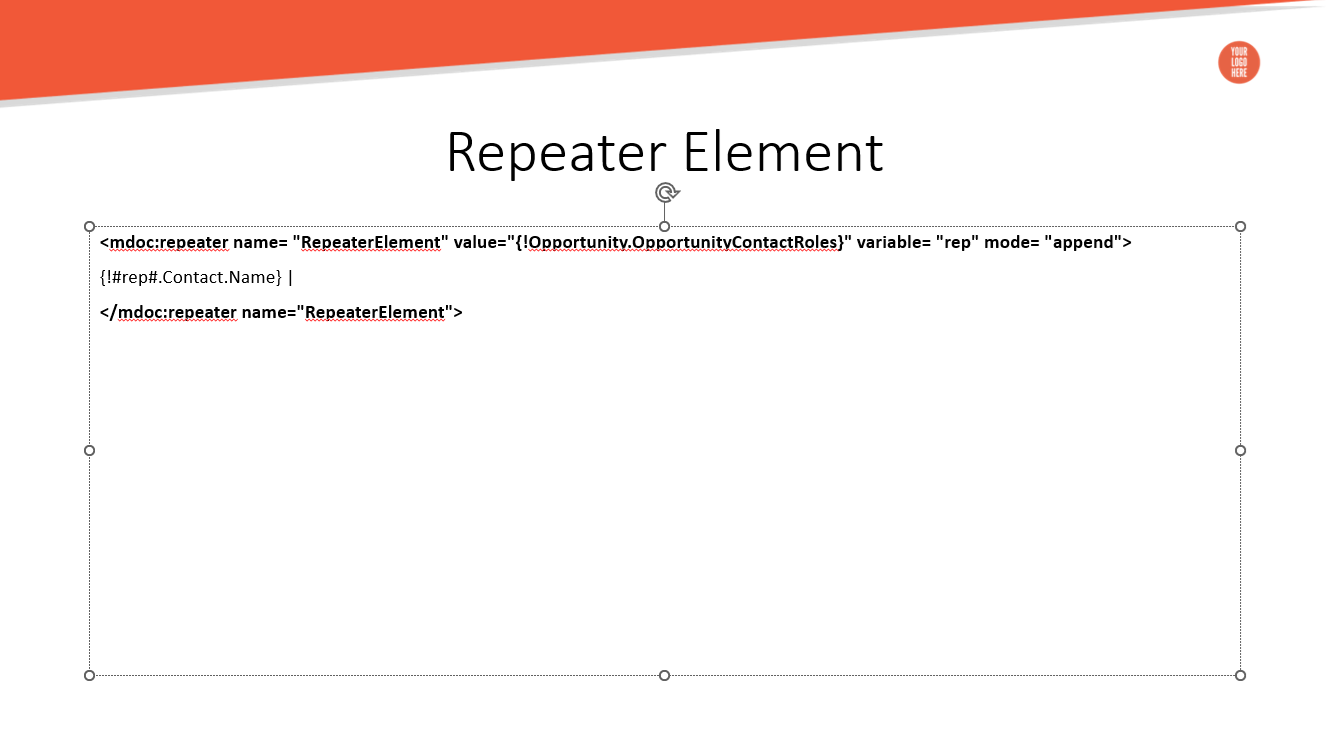
| mode | string | Defines whether values are repeated under each other or next to each other. Available values: standard, append. |
false | standard | true |
¶ Example
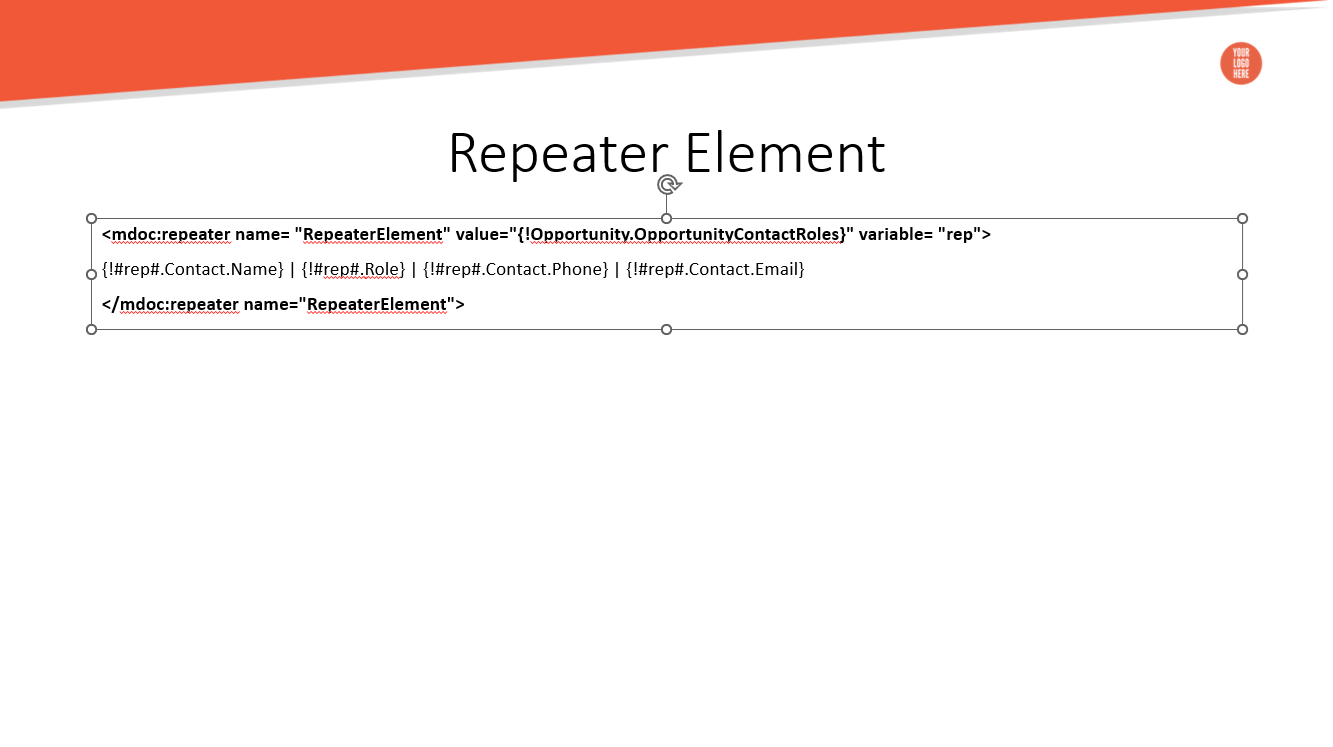
The hash # symbol is used. You must place # before and after any Variable referenced inside the Repeater.
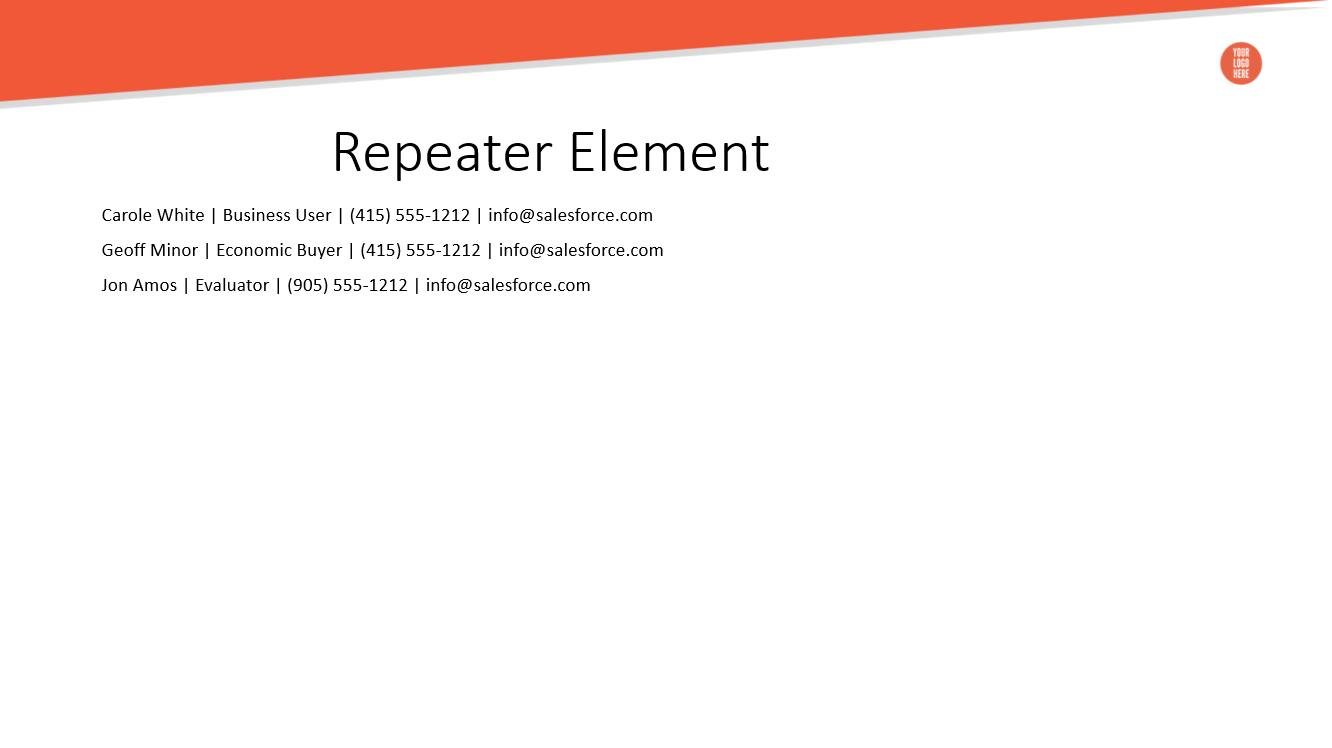
The example above generates something like this:
¶ Append Mode
If you want to have the output data rendered one after another in the same line, use the Append mode:
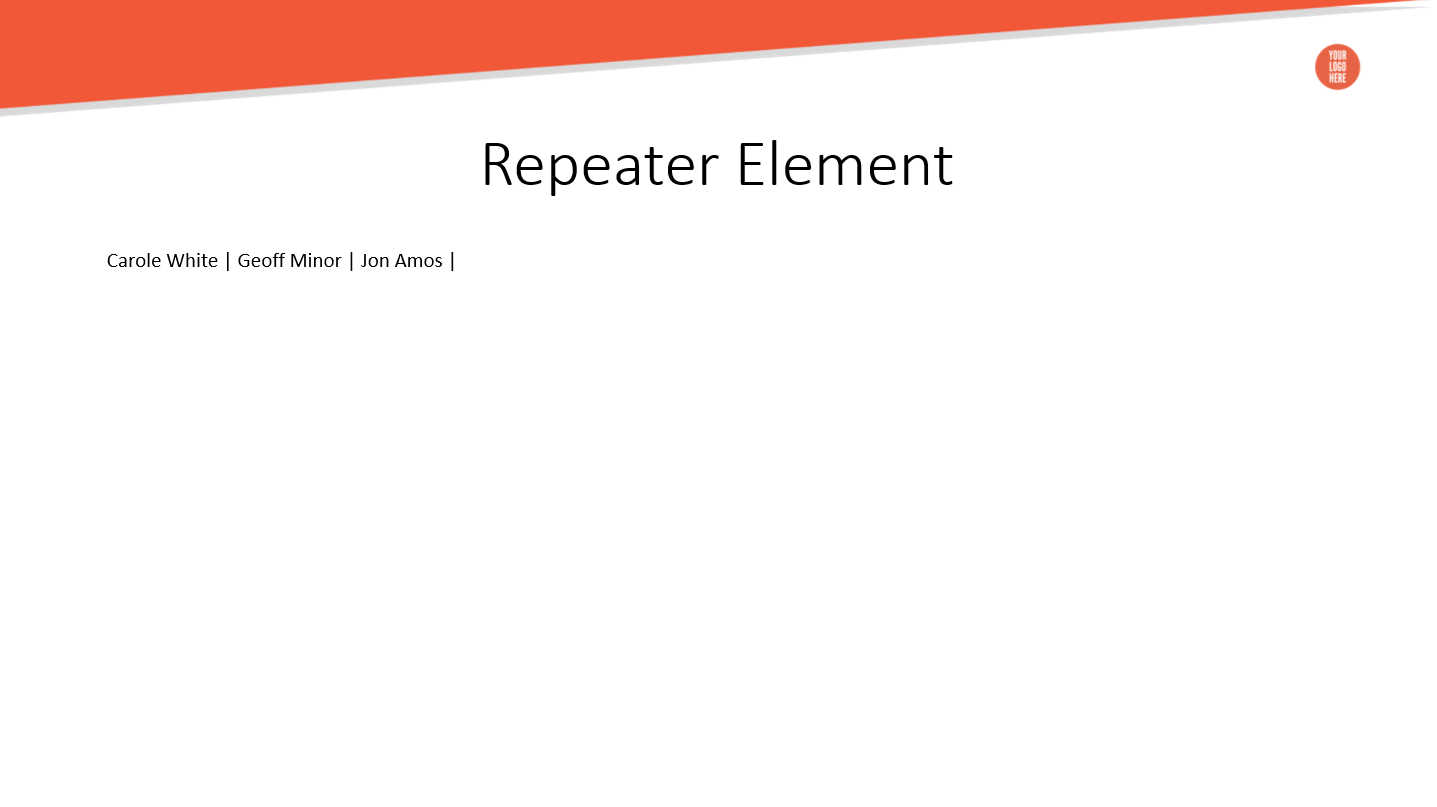
So the result looks like this:
There is also a possibility to use the Index Expression inside the Repeater. This expression returns the index of the repeating variable inside the Repeater.
¶ Table (mdoc:table)
This element inserts a table that's defined to iterate over a collection of data. The element displays information about one item per row. The element's body contains a table where one row is repeated through the iteration, and the element adds as many rows as there are records in the collection.
- selfClosing: true
- displayType: inline
- containers: body
¶ Parameters
| Parameter | Type | Description | Required | Default Value | Expression |
|---|---|---|---|---|---|
| value | string | Collection of records to use in the table. | true | - | true |
| variable | string | The current record in the iteration. | true | - | false |
| repeatingRow | integer | The index of the row to be repeated. | false | - | true |
¶ Example
Counting of rows starts with 0. In the screenshot below, the row with the element's body is row 0. In this case, the repeating row with index 2 is the one with merge fields.
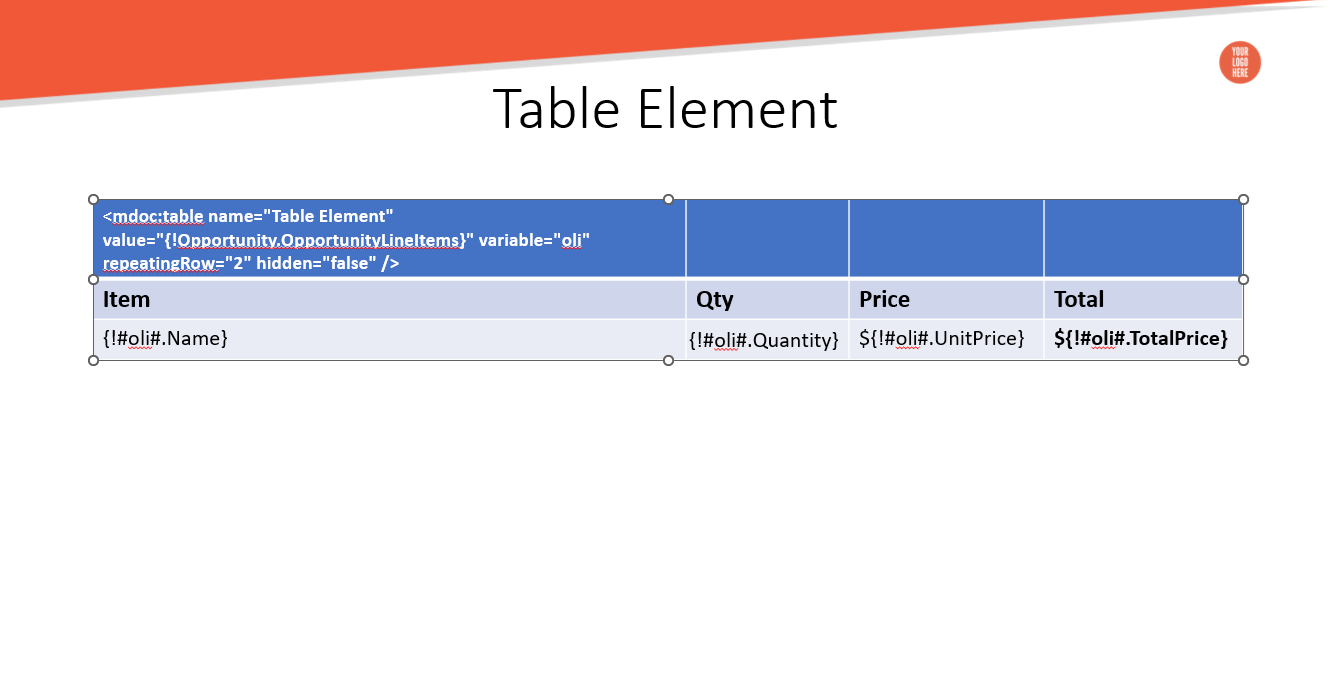
The hash # symbol is used. You must place # before and after any Variable referenced inside the Table.
The example above generates a table like the one shown in the screenshot below. The table expands with as many rows as there are records:
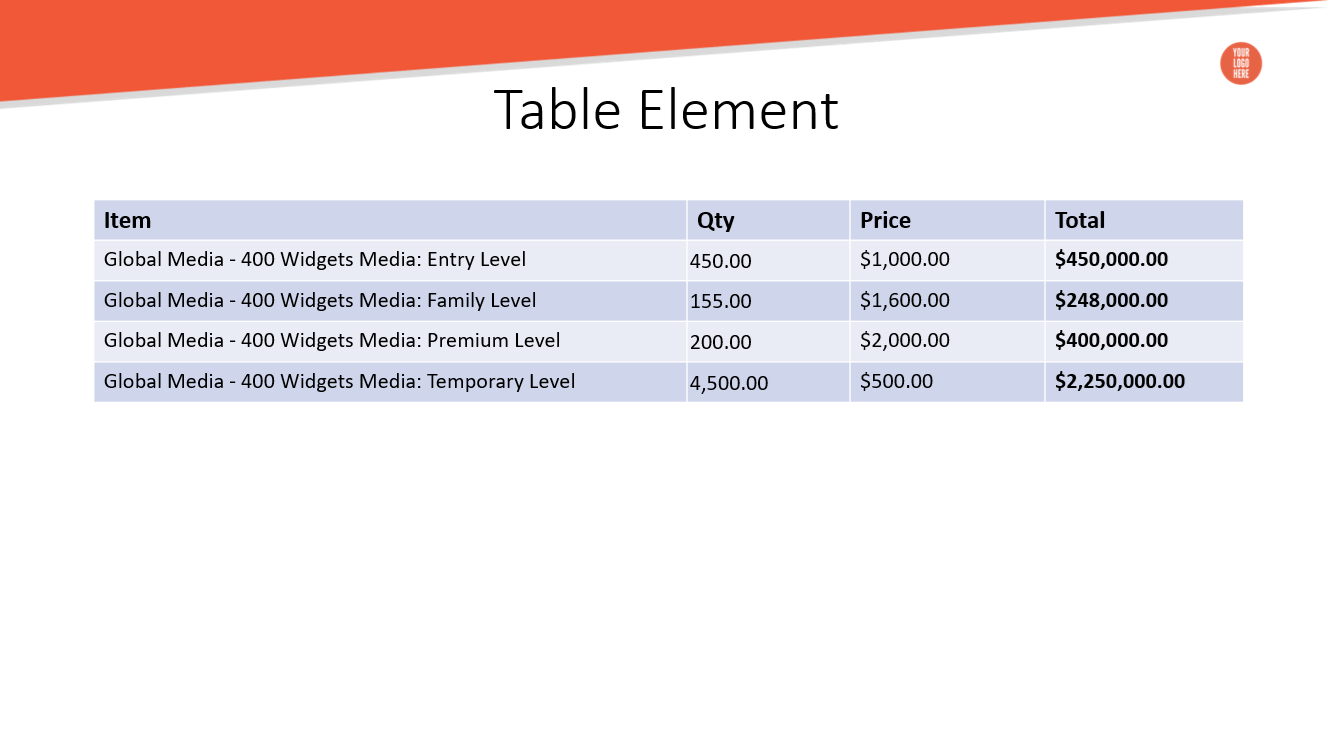
There is also a possibility to use the Index Expression inside the Table. This expression returns the index of the repeating row inside the Table.
¶ Image (mdoc:image)
This element allows you to render an image from the specified URL or base64 data.
- selfClosing: true
- displayType: inline
- containers: header, footer, or body
¶ Parameters
| Parameter | Type | Description | Required | Default Value | Expression |
|---|---|---|---|---|---|
| source | string | The merge field with base64 data or the URL of the image. Or the image's URL/base64 data itself. | true | - | true |
| width | integer | Width of the image in pixels. | false | - | true |
| height | integer | Height of the image in pixels. | false | - | true |
¶ Example
¶ URL
You can have a URL of the image as the source for the image. Here is how it works:
-
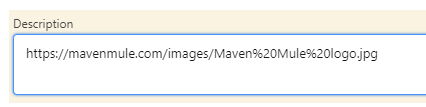
Fill the Salesforce field with the URL of the image.
-
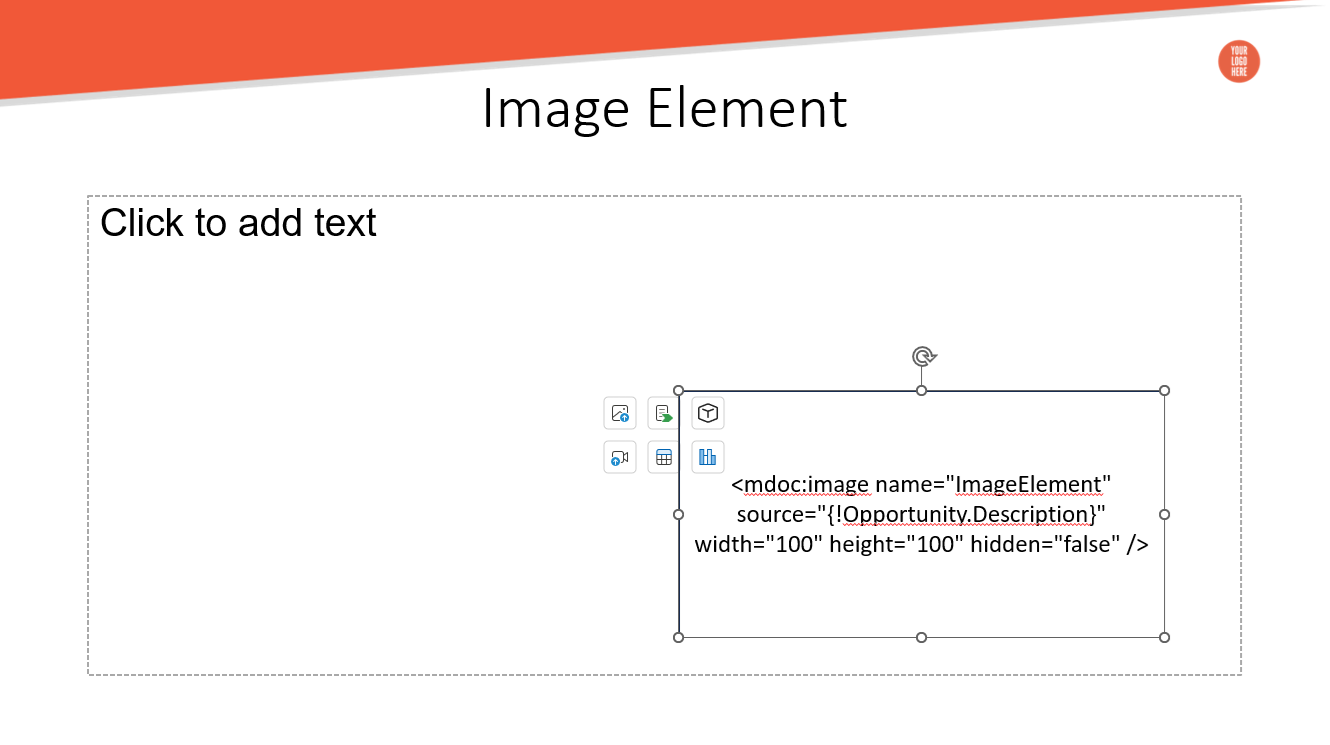
Manually insert the Image element's body inside the Shape on the PowerPoint slide.
-
Generate the document and get the content of the field rendered into the image.
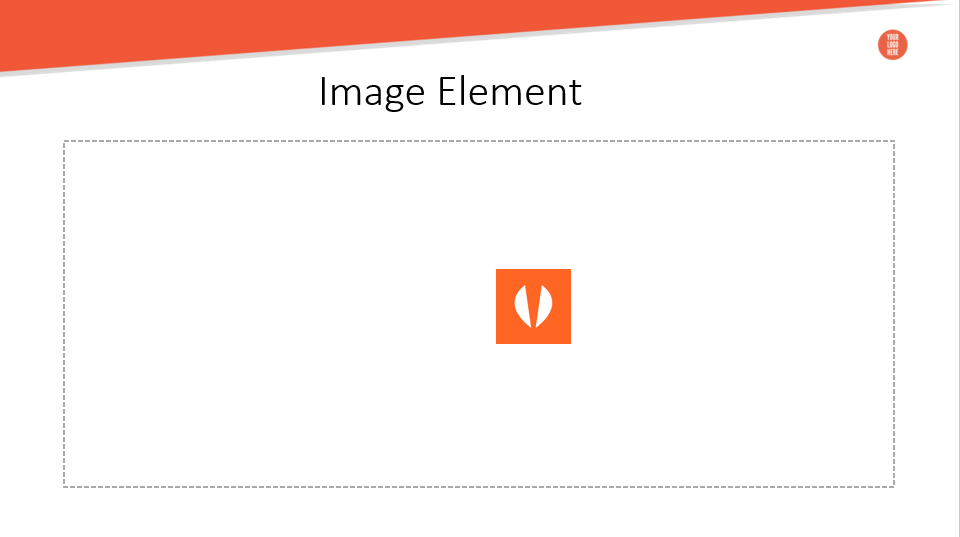
The example above renders the image from the URL that's in the Opportunity's Description field. Width and Height are both set to 100px.
¶ base64
You can have base64 code as the source for the image. The procedure is the same:
-
Fill the Salesforce field with the base64 code.
-
Manually insert the Image element's body inside the Shape on the PowerPoint slide, and do not define the size.
-
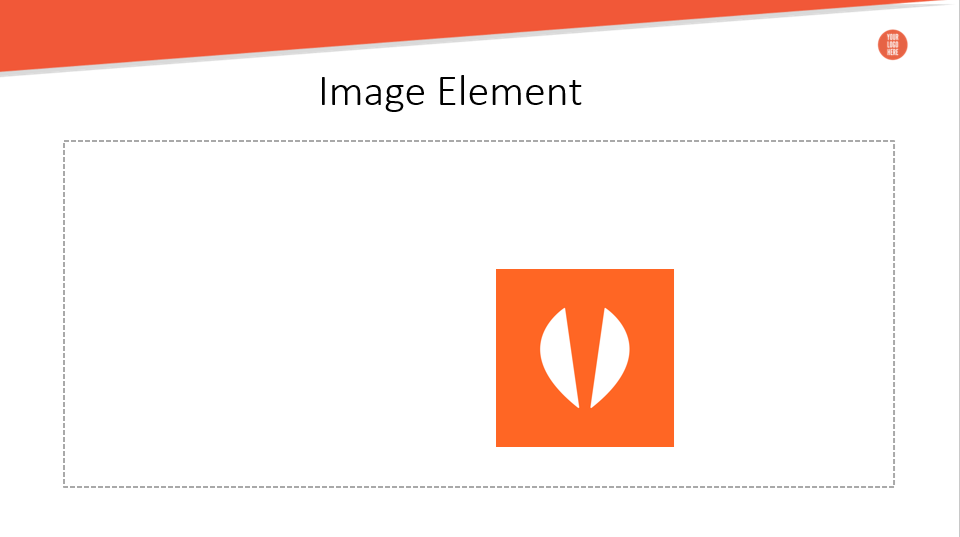
Generate the document and get the content of the field rendered into the image. As you can see, the rendered image now is adjused to the size of the shape where it's nested.
)
The example above renders the image from the URL that's in the Opportunity's Description field. Width and Height are both set to 100px.
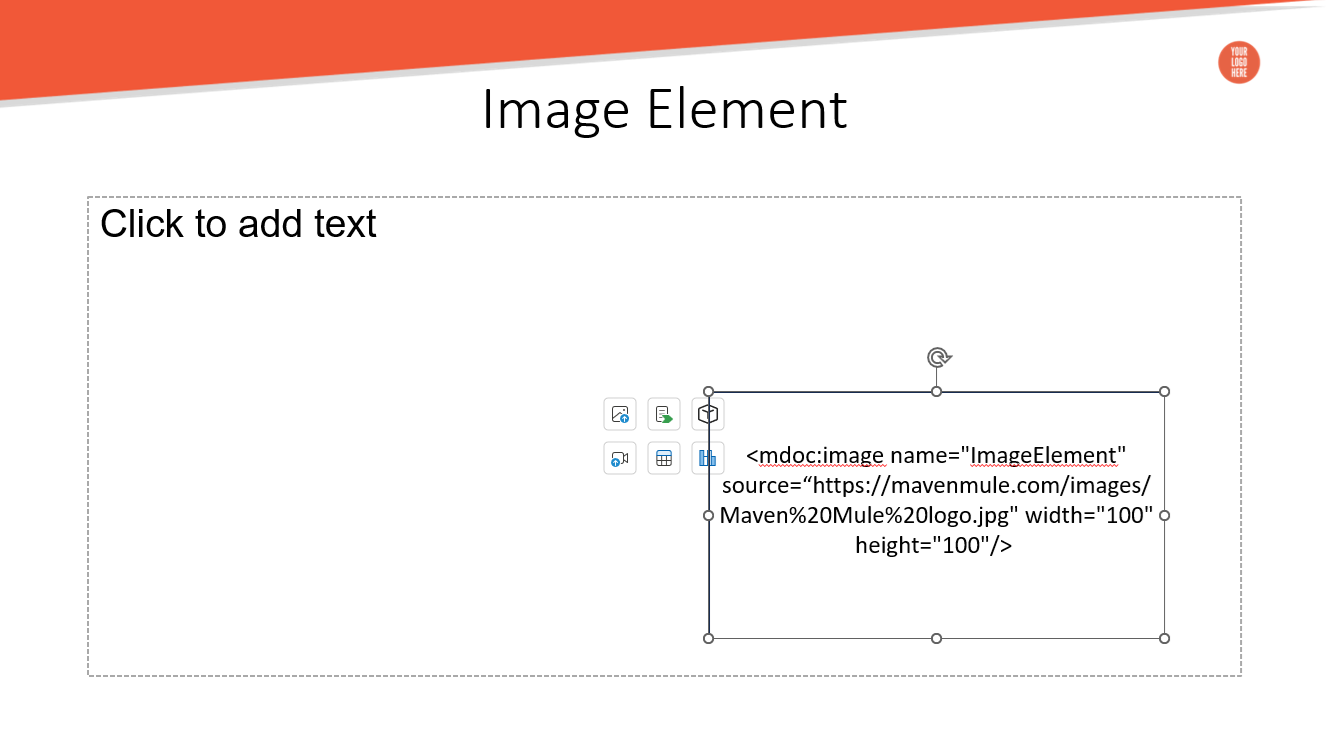
If you wish, you can put the image's URL or the base64 code into the element in the document.
The outcome is the same as with the merge field.
¶ Code (mdoc:code)
Renders various types of codes such as QR Codes, Barcodes, etc.
- selfClosing: true
- displayType: inline
- containers: header, footer, or body
¶ Parameters
| Parameter | Type | Description | Required | Default Value | Expression |
|---|---|---|---|---|---|
| type | string | Code type. | true | - | true |
| value | string | The merge field holds a value that is replaced with the code image. | true | - | true |
| scale | integer | The scale of the rendered code. Must be an integer > 0. | false | - | true |
| rotate | string | Defines the rotation of the code image to one of the four orthogonal orientations. Available values: N, R, L, I. |
false | - | true |
| includeText | boolean | Displays text below the code for some code types (e.g., code128). | false | - | true |
¶ Example
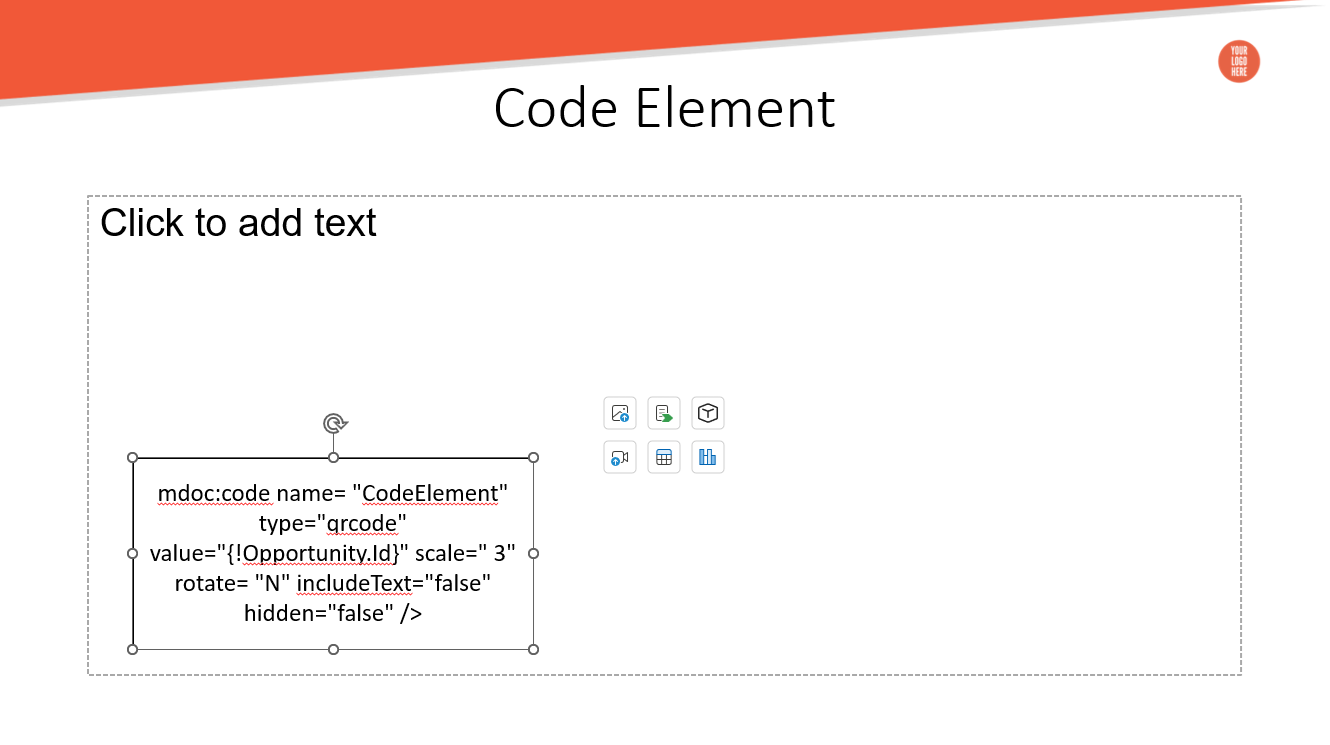
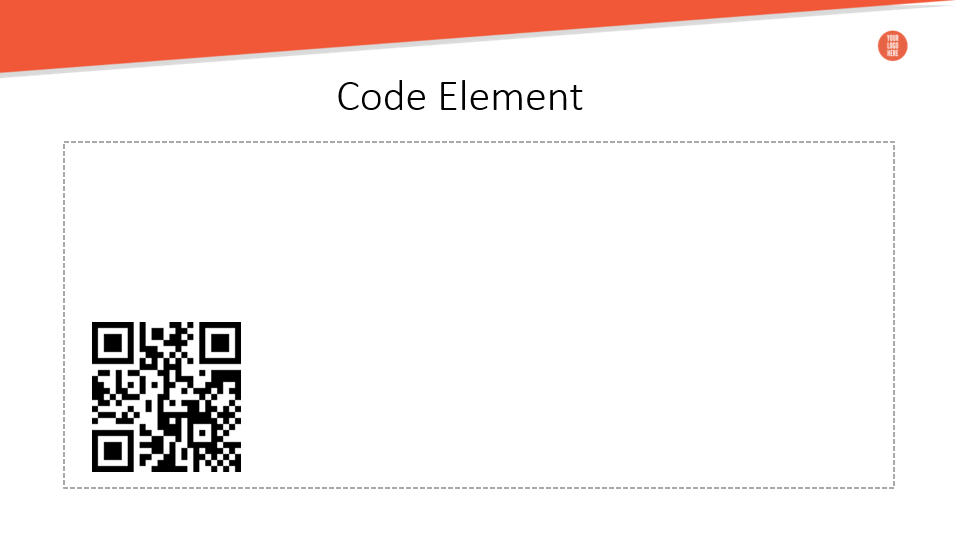
The example above renders the QR code with the Opportunity's ID as the code value. The Code image doesn't have any text added, has a scale of 3, and is not rotated in any direction.
¶ Text (mdoc:text)
The Text element shows/hides only the inline part of the text. The body of the element contains text that is shown or hidden.
- selfClosing: false
- displayType: inline
- containers: header, footer, body
¶ Example
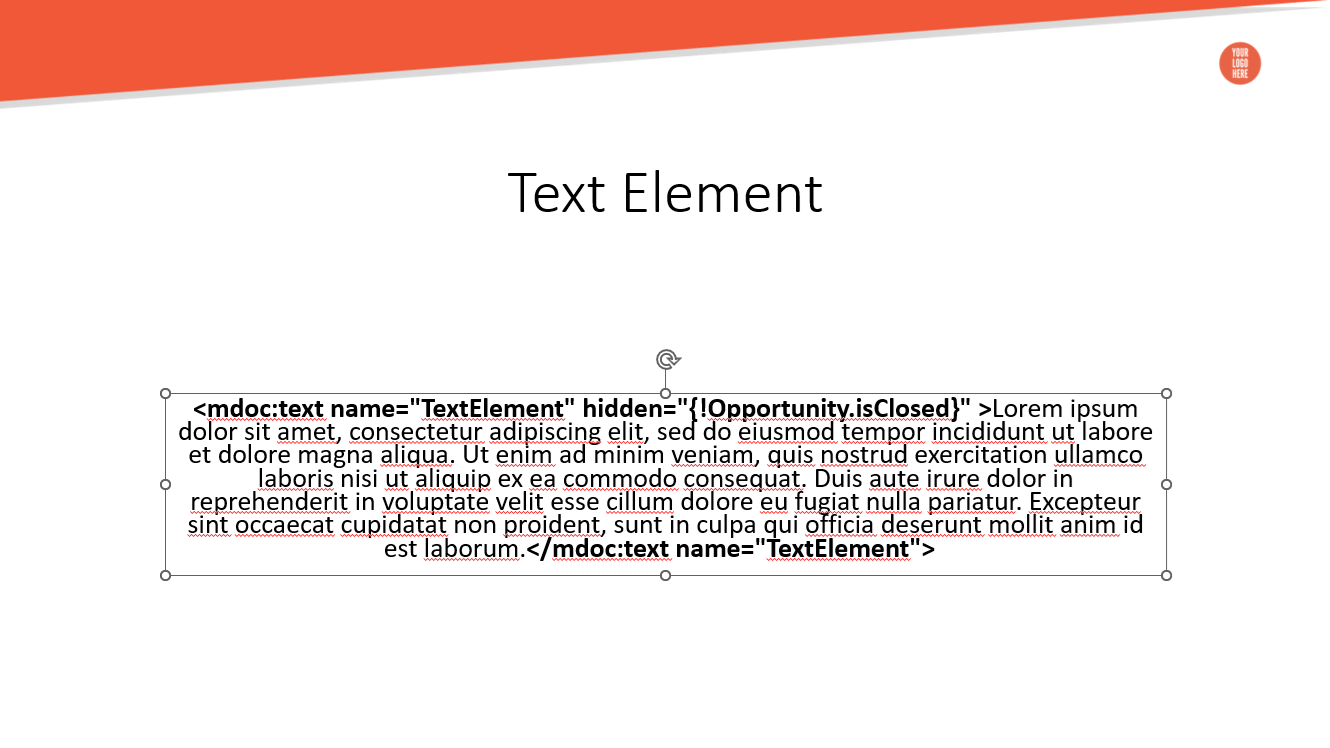
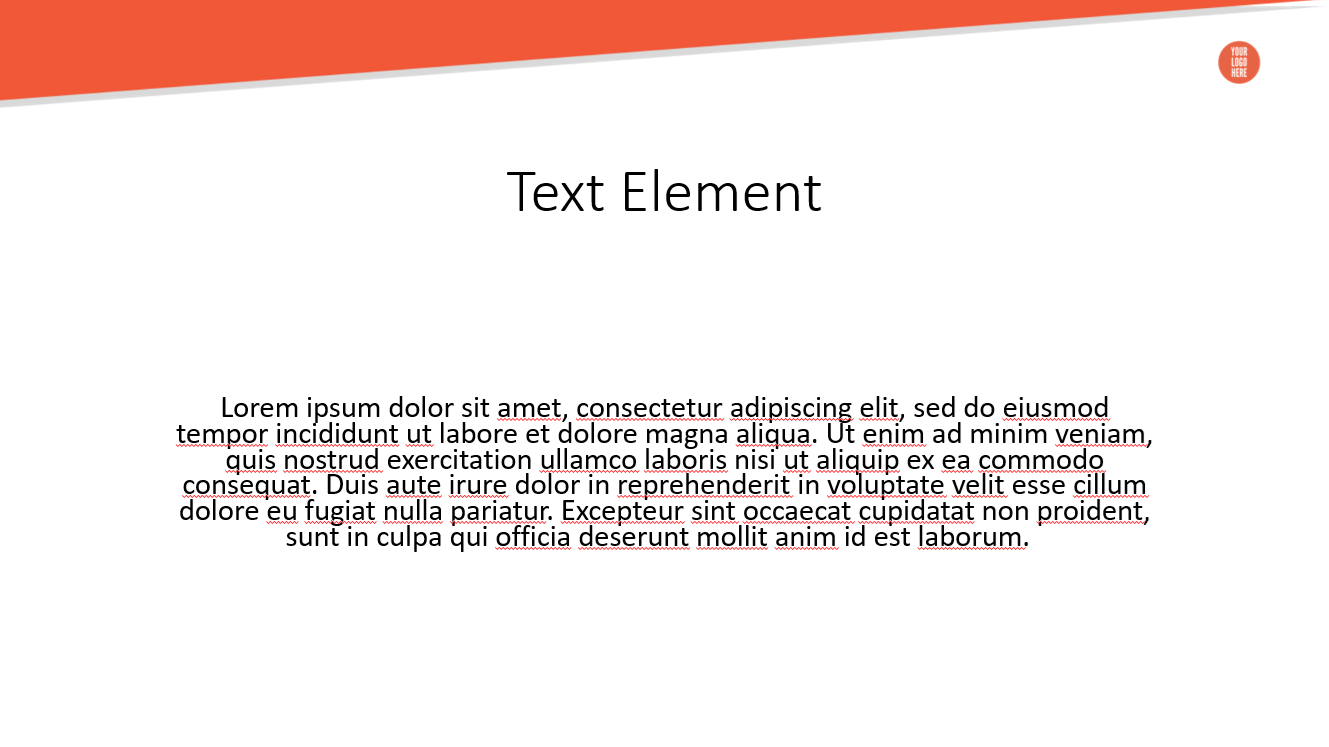
In the example above, the inline chunk of text is shown unless the corresponding Opportunity is closed.
¶ Link (mdoc:link)
The Link element renders a hyperlink into the document. The element's body contains the text of the hyperlink, while the URL is defined in the attribute.
- selfClosing: false
- displayType: inline
- containers: header, footer, body
¶ Parameters
| Parameter | Type | Description | Required | Default Value | Expression |
|---|---|---|---|---|---|
| url | string | The merge field that holds the URL or the URL value itself. | true | - | true |
¶ Example

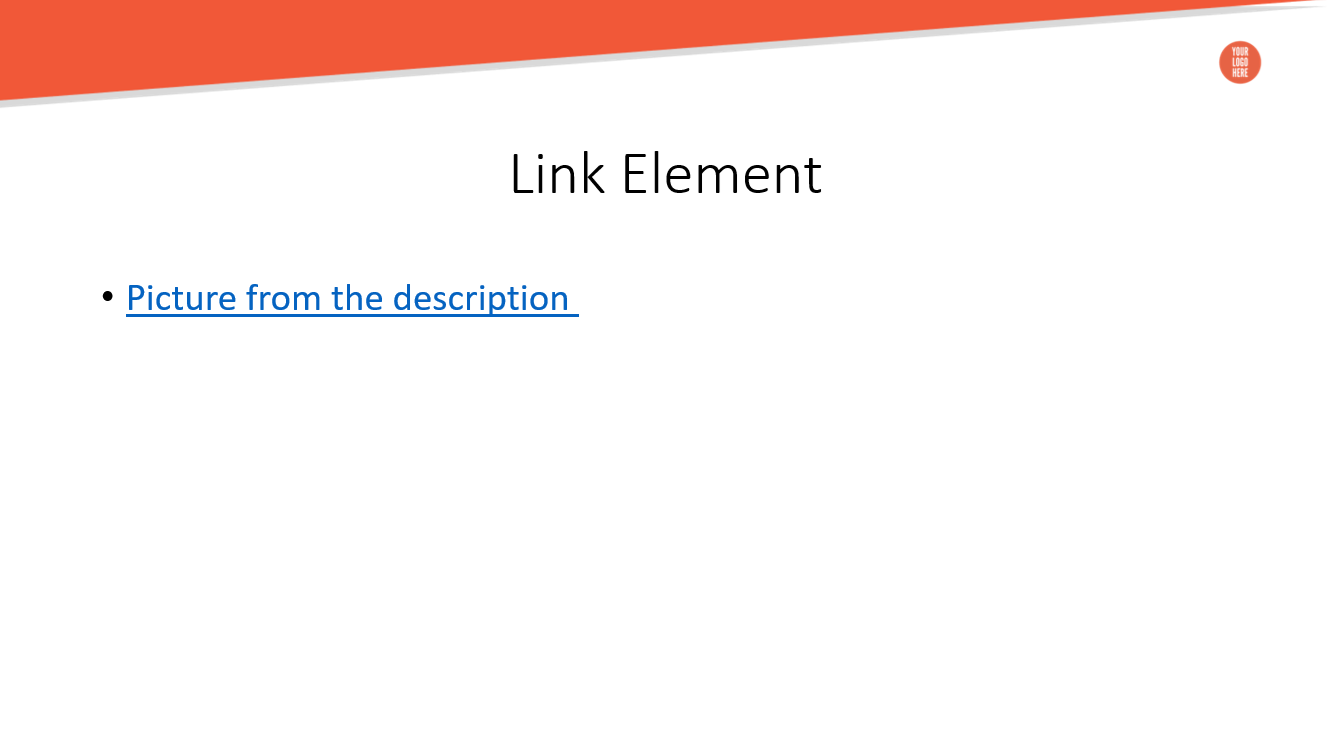
The example above creates the Link element with the URL stored in the Opportunity.Description field.
¶ Table Row (mdoc:tableRow)
The element hides rows of the Table element based on some criteria.
This element is only referenced with the Table element.
- selfClosing: true
- displayType: block
- containers: body
¶ Parameters
| Parameter | Type | Description | Required | Default Value | Expression |
|---|---|---|---|---|---|
| hidden | boolean | Defines whether the row is removed. | false | - | true |
| indexes | integer | Comma-separated row indexes that are hidden if the Hidden paremeter is true. | true | - | true |
The Hidden parameter here has a different meaning from the one we mentioned at the beginning of this page. This Hidden parameter defines if the row is removed, but not the element itself.
¶ Table Column (mdoc:tableColumn)
The element hides columns instead of rows. Table Column behaviour is similar to the Table Row element.
This element is only referenced with the Table element.
- selfClosing: true
- displayType: block
- containers: body
¶ Parameters
| Parameter | Type | Description | Required | Default Value | Expression |
|---|---|---|---|---|---|
| hidden | boolean | Defines whether the column is removed. | false | - | true |
| indexes | integer | Comma-separated column indexes that are hidden if the Hidden paremeter is true. | true | - | true |
The Hidden parameter here has a different meaning from the one we mentioned at the beginning of this page. This Hidden parameter defines if the column is removed, but not the element itself.
¶ Example
The example includes both the Table Row and Table Column elements because they have similar definitions.
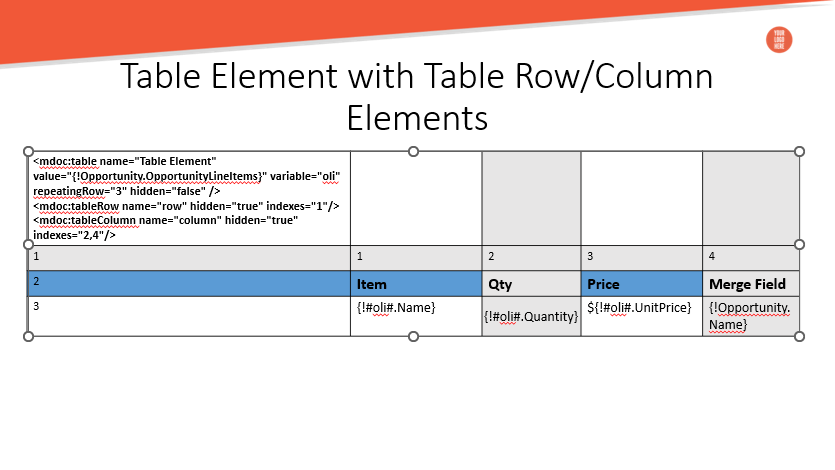
In the screenshot above, the row and columns colored grey should be hidden, and the row with merge fields should be repeated.
Rows and columns are counted starting from 0, so in this example, the cell with the element’s body is located in row 0 and column 0.
Here is the result:
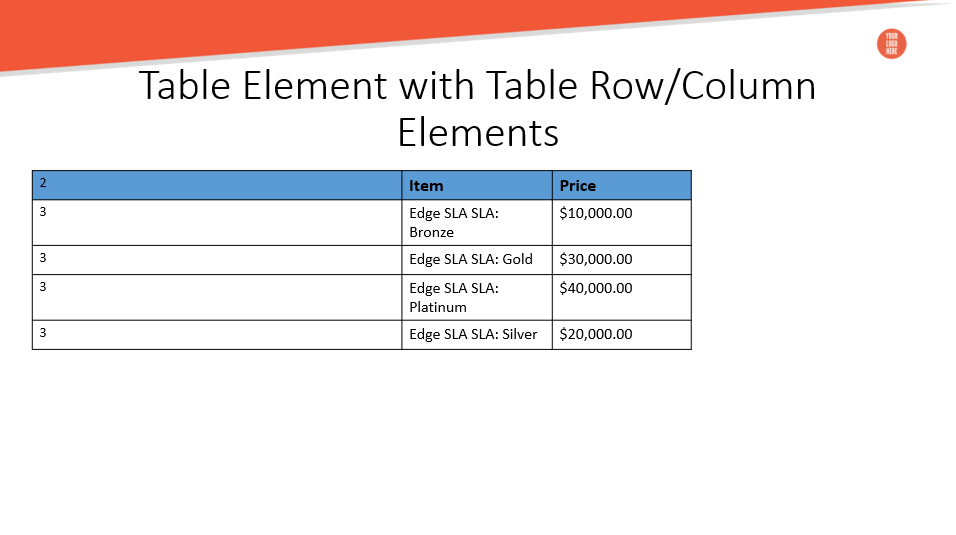
As you can see, the rows and columns colored grey are hidden, and the content of the merge fields is repeated. Rows and columns that are left saved the initial size.
¶ Slide (mdoc:slide)
This element hides the slide with the element when the hidden parameter results in true.
- selfClosing: true
- displayType: block
- containers: body
¶ Parameters
| Parameter | Type | Description | Required | Default Value | Expression |
|---|---|---|---|---|---|
| hidden | boolean | Defines whether the slide is removed. | false | - | true |
The Hidden parameter here has a different meaning from the one we mentioned at the beginning of this page. This Hidden parameter defines whether the slide is removed, not the element itself.
¶ Example
Here's what the element looks like on the slide.

Once the document is generated, the slide is removed from the presentation if the corresponding Opportunity is closed.
If the Hidden parameter results in "true" and the element is inserted on the only slide in the presentation, the generation of such a document fails.