¶ Administration
¶ User License Management
Once you install the package, your organization has licenses available for assignment. Users must have these licenses assigned to use the app. Here's how you can assign them:
-
Open the Setup settings on Salesforce.
-
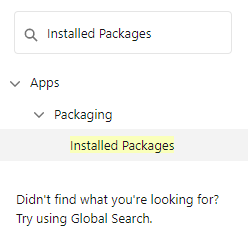
Search for Installed Packages and select the respective setting.
-
Find the Maven Banking entry in the Installed Packages list and click on Manage Licenses.
-
Click the Add Users button and select users by marking the checkbox next to their names.
-
Click the Add button to add the selected users.
If the user has no license assigned, such a user will not be able to work with our application.
We also have the Fair Usage Policy applied to all users.
¶ Permission Sets Management
The next thing to do is to assign permissions to individual users.
Three types of permission sets come with the package:
- Maven Banking Administrator. Allows administration and configuration of the Maven Banking application.
- Maven Banking User. Allows financial data retrieval for admin-authorized financial institution accounts.
- Maven Banking Multiple Currencies Org. This permission set needs to be assigned to users if the organization uses Multiple Currencies. It is used for the conditional display of list views and fields.
Setting up Permission Sets for users can be done in a few simple steps.
-
Go to Setup > Permission Sets.
You will see all permission sets and choose the ones you want to work with. In this case, Maven Banking Administrator and Maven Banking User.
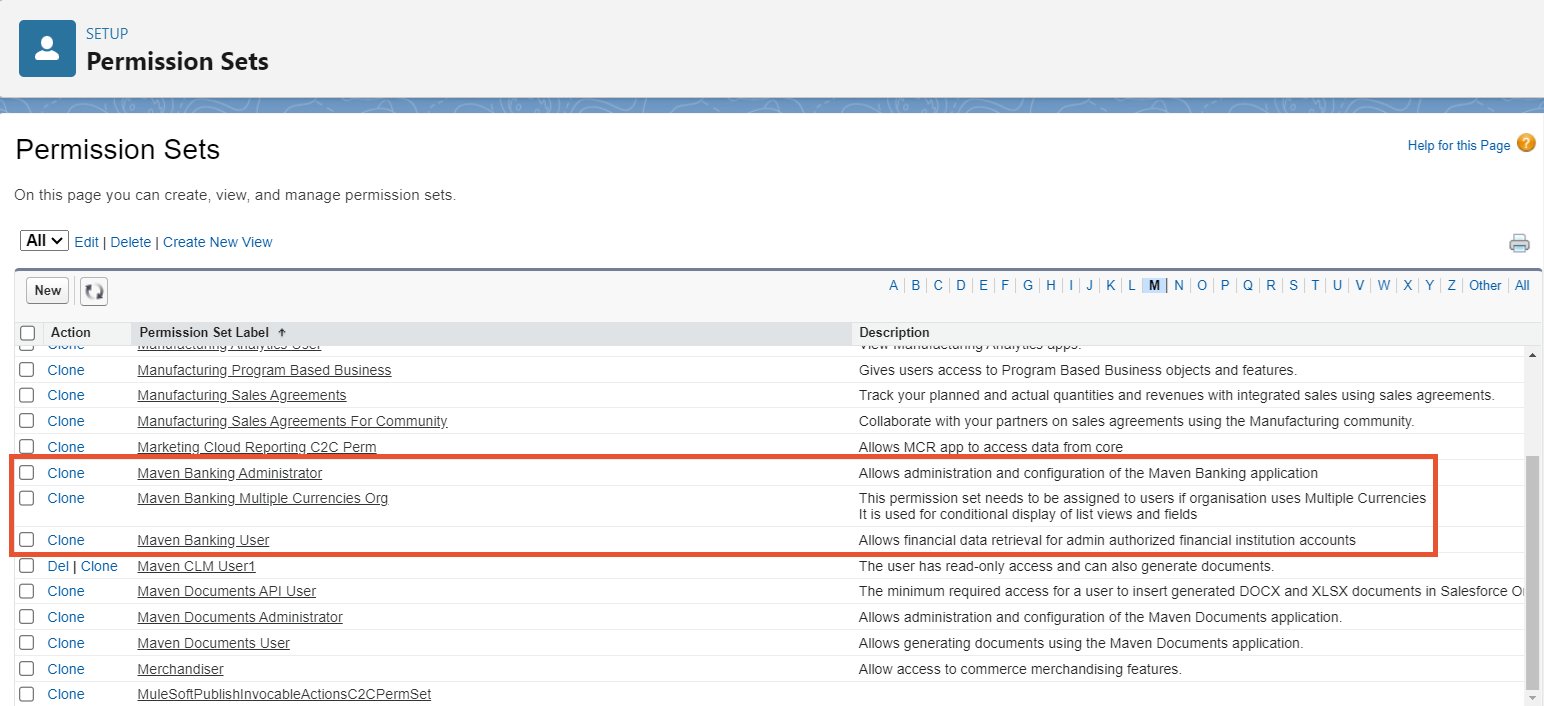
If the Multiple Currencies feature is activated on your org, it is mandatory to assign the Maven Banking Multiple Currencies Org permissions sets to the respective users. Otherwise, the app won't function properly.
-
Once the permission set is selected, for example, Maven Banking Administrator, it is time to assign it to specific users:
- Click on the Maven Banking Administrator permission set.
- Click on the Manage Assignments button.

-
After that, you need to click the Add Assignment button, which leads you to the process of selecting the corresponding user.

-
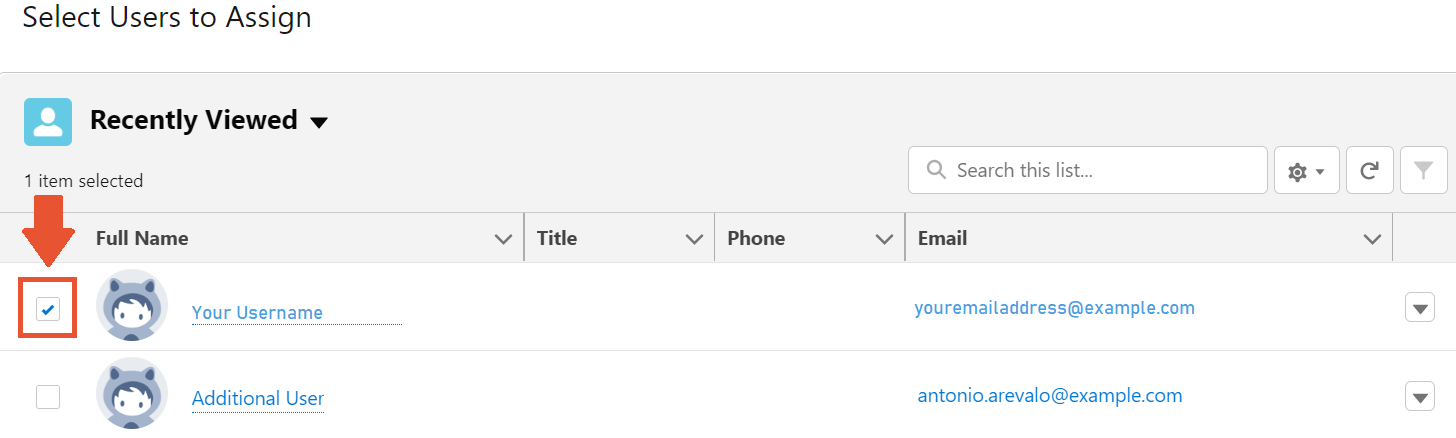
Mark the checkbox on the left of the user's name to select who will use the permission set and click Next.
-
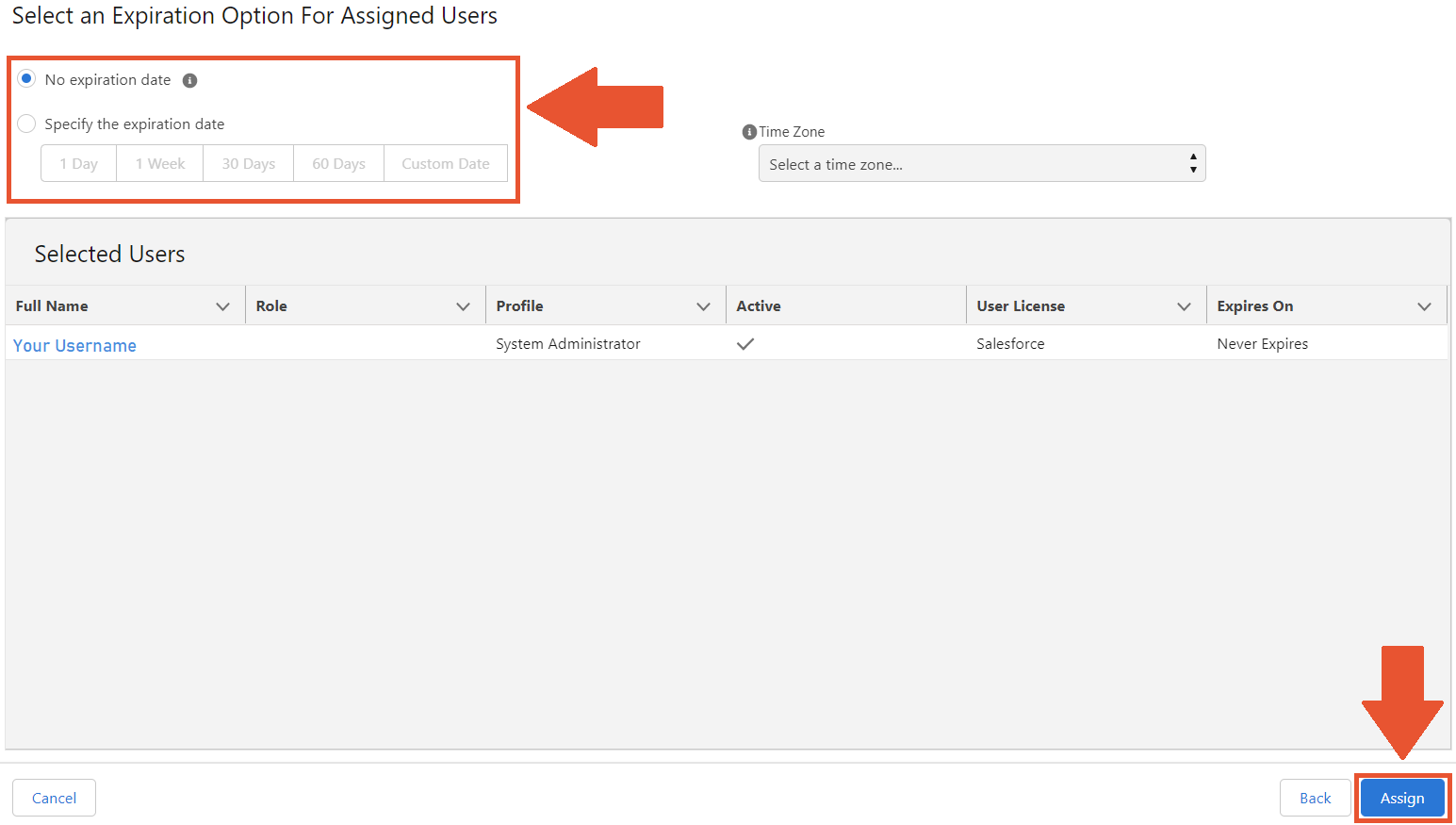
On the next screen, you can set the expiration date for the permission set or leave the default setting with no time limit.
-
Once you finish selecting users for the permission set and setting the time frame for those settings, click Assign.


¶ Multi-Currency Org
If the org where you install Maven Baking is set to use multiple currencies, you need to make some additional adjustments:
-
In Setup settings search and select the Cusotm Metadata Types option.
-
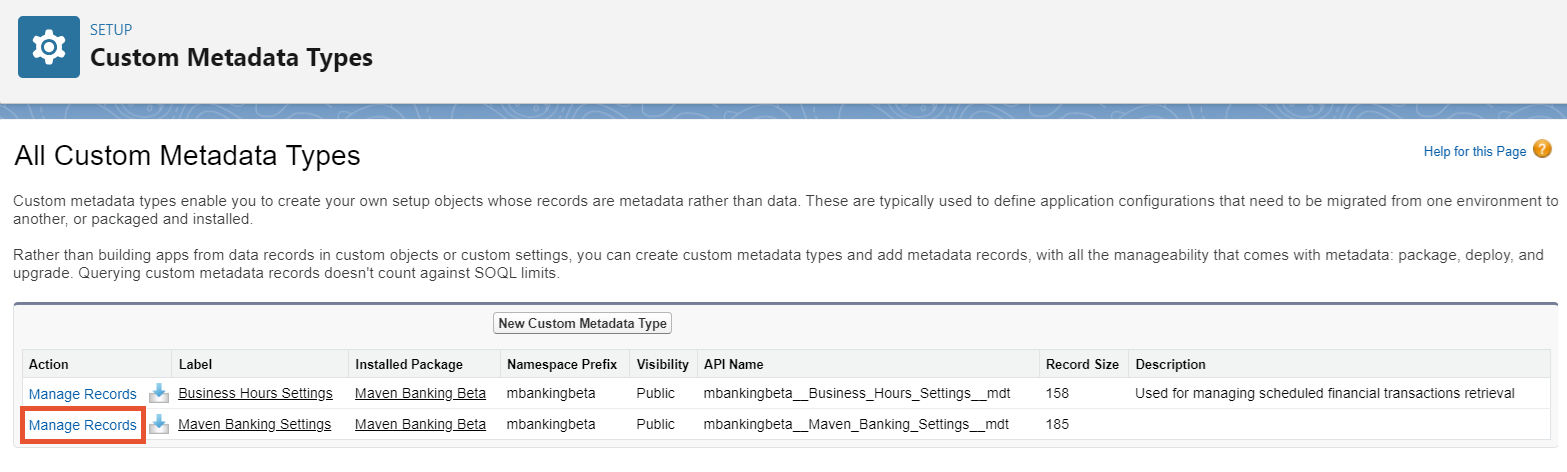
Next to Maven Banking Settings, click Manage Records.
-
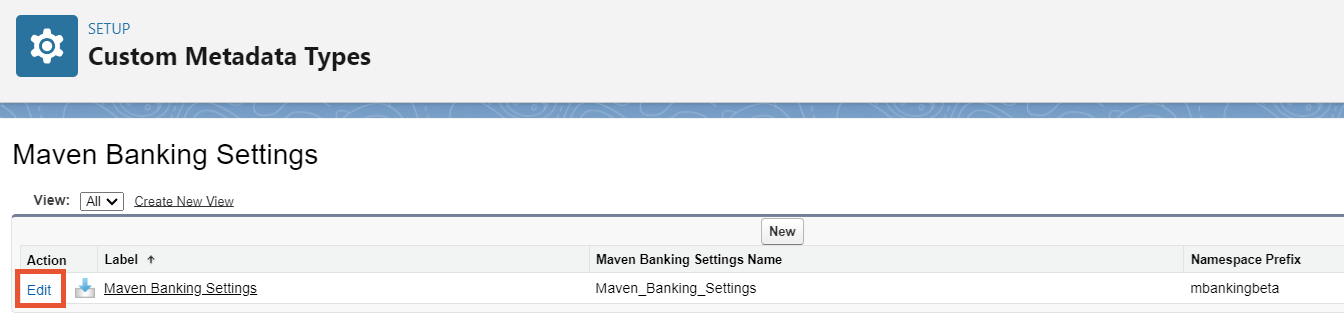
Click Edit.
-
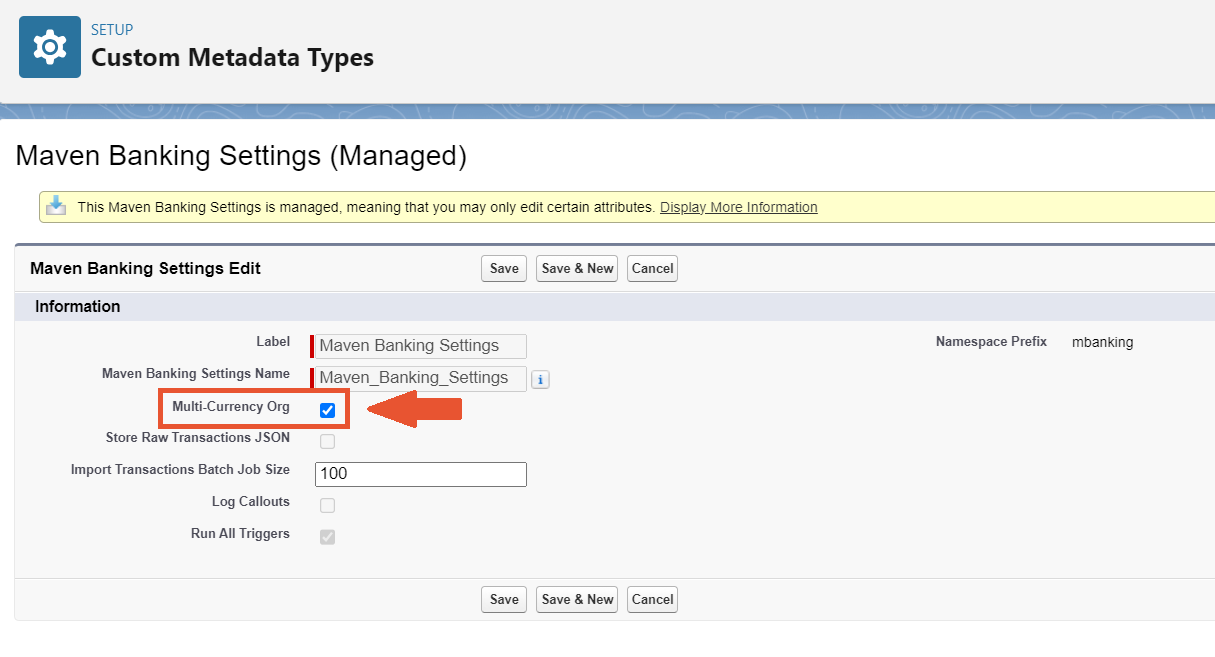
Mark the Multi-Currency Org checkbox.
-
Leave other settings untouched and Save the changes.


